Sets
Organize, save, and share your API testing workflows with Quetzly Validator's Sets feature. Sets allow you to create collections of related requests, making it easy to manage complex testing scenarios and share configurations with team members.
What are Sets?
Sets are collections of saved API requests that include:
- Request configurations: URLs, methods, parameters, headers, and body content
- Service types: WMS, WFS, ArcGIS, or standard REST API configurations
- Export/Import capability: Share sets with colleagues or backup your configurations
Accessing the Sets Interface
- Click the
 Sets icon in the left sidebar
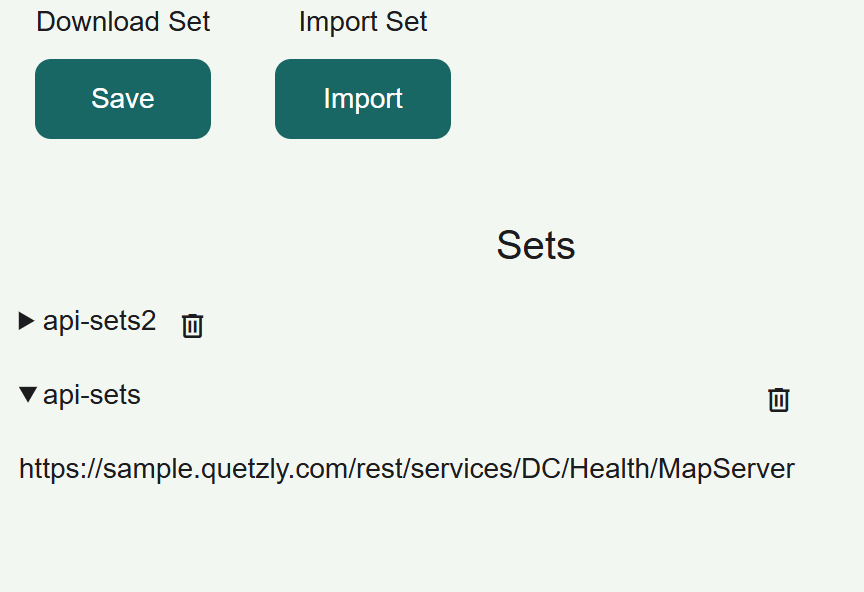
 - The Sets panel displays:
- Download Set: Export your current configurations
- Import Set: Load saved configurations
- Sets List: View all your saved request collections
Creating and Managing Sets
Adding Service URLs Directly
The quickest way to create a set is to paste one or more service URLs directly into the Sets panel — no map layers required.
- Navigate to the Sets section
- Enter one or more URLs in the text area (one URL per line):
https://services.arcgis.com/example/arcgis/rest/services/Roads/MapServer
https://services.arcgis.com/example/arcgis/rest/services/Parcels/FeatureServer
https://services.arcgis.com/example/arcgis/rest/services/Imagery/ImageServer - Click "Save" — a native save dialog appears where you name the set
- The set is saved and immediately appears in your Sets list
Each URL is saved as a GET / JSON layer entry. You can click any row in the set to load that URL into the API section.
Saving Your Current Work
Download Set (Export)
- Configure your requests in the API section
- Navigate to the Sets section
- Click the "Save" button under "Download Set"
- Choose a location to save your
.jsonconfiguration file - Name your file descriptively (e.g.,
company-wms-services.json)
The exported file contains:
- All current request parameters
- Headers and authentication settings
- Service type configurations
- Any custom settings or preferences
Note: The export feature will download a json file of all layers currently on the map.
What Gets Saved
- ✅ Request URLs: All endpoint addresses
- ✅ HTTP methods: GET, POST, PUT, PATCH, DELETE
- ✅ Service types: WMS, WFS, ArcGIS, JSON selections
- ✅ Query parameters: All key-value pairs
- ✅ Headers: Including authentication headers
- ✅ Request bodies: JSON content for POST/PUT requests
Set File Format
For a set to load successfully, it must follow this JSON structure:
{
  "layers": [
    {
      "url": "https://api.example.com/endpoint",
      "method": "POST",
      "type": "JSON",
      "params": {
        "key1": "value1",
        "key2": "value2"
      },
      "headers": {
        "Content-Type": "application/json",
        "Authorization": "Bearer [YOUR-TOKEN]"
      },
      "data": {
        "type": "Feature",
        "geometry": {
          "type": "Point",
          "coordinates": [-122.4194, 37.7749]
        },
        "properties": {}
      }
    }
  ],
  "timestamp": "2025-11-30T12:00:00.000Z"
}
Required fields:
layers(array): Contains all request configurationsurl(string): The API endpoint URLmethod(string): HTTP method (GET, POST, PUT, PATCH, DELETE)type(string): Service type (WMS, WFS, JSON, ArcGIS)
Optional fields:
params(object): Query parameters as key-value pairsheaders(object): HTTP headers as key-value pairsdata(object): Request body for POST/PUT requeststimestamp(string): ISO 8601 timestamp of export
Common format errors:
- Missing
layersarray - Invalid JSON syntax (missing commas, brackets, quotes)
- Incorrect data types (string instead of object)
- Malformed URLs or invalid HTTP methods
Loading Saved Sets
Import Set
- Click "Import" button under "Import Set"
- Browse to your saved
.jsonfile - Select the configuration file
- Confirm the import
- The requests will be loaded and available in your Sets list
Import Behavior
- Additive: Imported sets are added to existing sets (no overwrite)
- Validation: Invalid configurations are skipped.
- Restoration: All parameters, headers, and settings are restored
- Immediate availability: Imported sets appear instantly in the Sets list
Managing Your Sets Collection
Sets List Interface
The Sets list shows:
- Set names: Descriptive names for each collection. It's defined by the files name.
- Actions: At the moment there is only delete action but more to come.
Loading a Set
- Locate the desired set in the Sets list
- Click on the set name or "Load" button
- The requests are loaded into the API interface
- Switch to API section to use the loaded requests
- Modify parameters as needed before sending
Practical Use Cases
Development Workflows
API Development Testing
Create sets for:
- Development environment: URLs pointing to dev servers
- Staging environment: Pre-production testing configurations
- Production environment: Live service testing (use carefully)
- Local testing: localhost and development server configurations
Feature Testing Suites
Organize by functionality:
- Authentication tests: Login, token refresh, logout flows
- CRUD operations: Create, read, update, delete sequences
- Spatial queries: Various geometry-based requests
Team Collaboration
Sharing Configurations
Export for colleagues:
- Create comprehensive sets with your working configurations
- Export to shared network locations or version control
- Include documentation about each request's purpose
- Share authentication setup instructions separately
Team standards:
- Naming conventions: Consistent set and file naming
- Documentation: Clear descriptions for each request
- Version control: Track changes to shared sets
- Security: Avoid sharing sensitive authentication data
Onboarding New Team Members
Create "starter sets" that include:
- Common service endpoints: Frequently used APIs
- Example requests: Well-documented example calls
- Testing patterns: Standard testing workflows
- Environment configurations: Different deployment targets
Quality Assurance
Regression Testing
Build sets for:
- Smoke tests: Basic functionality verification
- Full regression: Comprehensive testing suites
- Performance baselines: Standard performance test configurations
- Edge cases: Boundary condition and error testing
Release Testing
Create release-specific sets:
- Pre-release validation: Test new features
- Compatibility testing: Verify backward compatibility
- Integration testing: Multi-service interaction tests
- User acceptance: End-user scenario testing